What is a Chrome Plugin (Chrome Extension)?
A Chrome plugin (commonly called a Chrome extension) is a small add-on you install in the Chrome browser to add capabilities, like recording test steps, inspecting selectors, validating APIs, capturing evidence, or running accessibility audits directly in your workflow.
Why this matters for QA: the Chrome Web Store contains a massive number of extensions (over 111k as of Aug 2024 data), so you want a curated, tester-focused set—not random installs.
How do Chrome Plugins for Testers help?
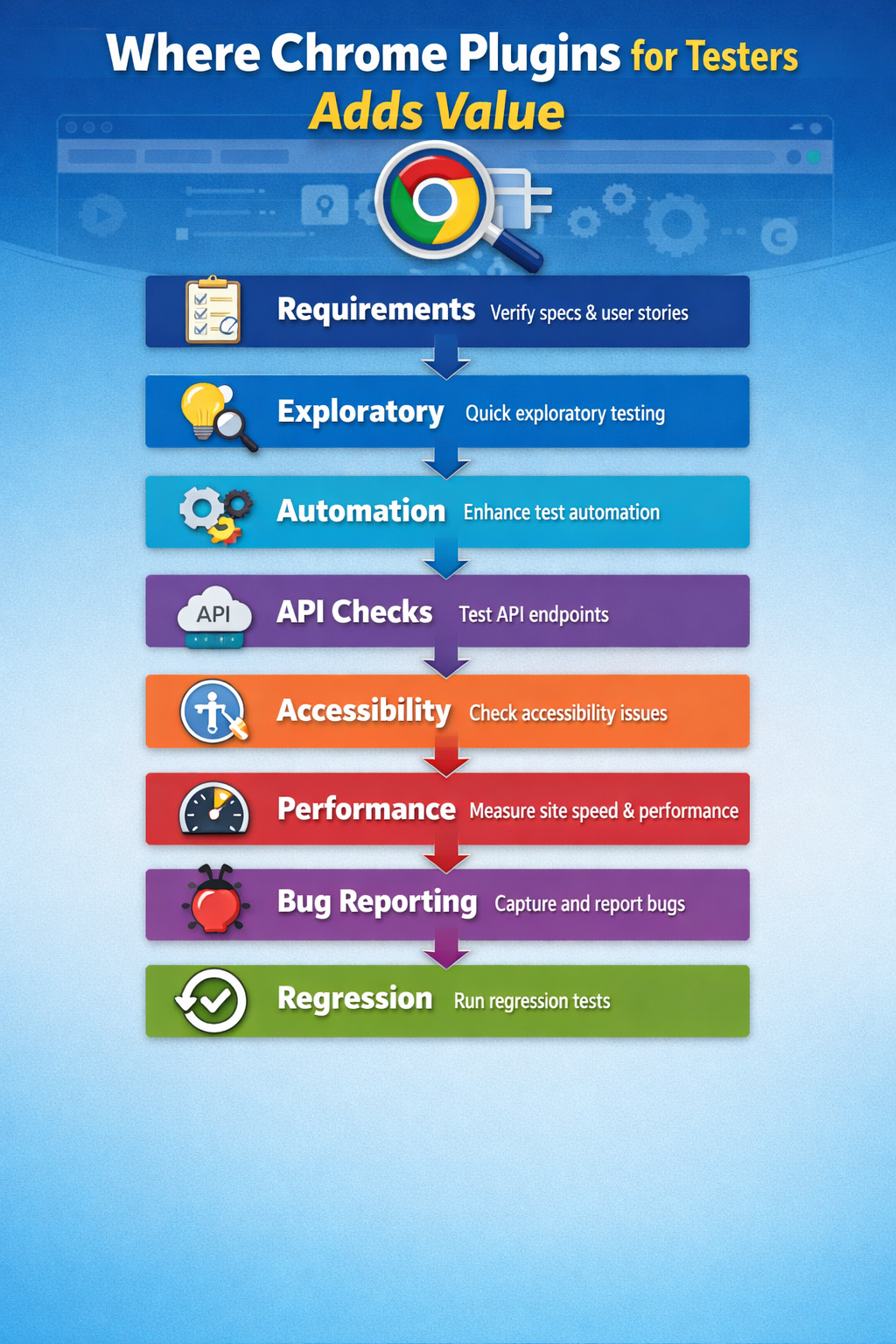
Here’s what Chrome Plugins for Testers do best:
-
Speed up exploratory testing: Generate boundary inputs, capture notes/screenshots, and export sessions.
-
Reduce “repro steps” debt: Record flows in plain English or as runnable scripts.
-
Shift-left accessibility & performance: Run audits early, fix issues before they turn into release blockers.
-
Improve bug reporting quality: Auto-capture console logs, network context, environment details, and visuals.
-
Make web apps easier to debug: Add framework DevTools and JSON formatting for rapid inspection.
Things to watch while using Chrome Plugins
Extensions can be incredibly helpful—but they can also become a risk if unmanaged.
1) Permissions and data access (the #1 risk)
Some extensions ask for broad permissions, such as “Read and change all data on websites you visit.” Only grant what’s necessary.
Recent security reports show that attackers have used malicious Chrome extensions to steal sensitive data at scale (hundreds of thousands of installs).
Practical rule: For tester tooling, prefer extensions that:
-
Are well-known in QA/dev communities
-
Have transparent privacy docs and a clear publisher
-
Don’t ask for unrelated permissions
2) Don’t overload your browser
Too many extensions slow Chrome and create “it only fails on my machine” noise.
Practical rule: Maintain two Chrome profiles:
-
Daily profile (minimal extensions)
-
QA profile (testing-only extensions)
3) Evidence integrity (screenshots/recordings)
If you record screens or take screenshots, ensure sensitive data (tokens, PII, credentials) is blurred or not captured.
4) Performance metrics can vary
Performance and web vitals can differ by device, network, and caching. Use extensions for directional signals, then validate with repeatable runs and CI where needed.
Google defines Core Web Vitals as real-world UX metrics for loading, interactivity, and visual stability.
Categories: the complete list of 47 Chrome Plugins for Testers
Below is a categorized breakdown of all 47 verified extensions from the reference document (ratings included there).
1) Test management and exploratory testing
These help you capture sessions, steps, and insights while you test.
-
SpiraCapture (★3.7) – Exploratory recorder with clicks/keystrokes/URL changes and network errors; integrates with Spira tool (★4.9) – Records actions as plain English; generates documentation automatically.
-
Bug Magnet (★4.3) – Right-click menu of edge-case/boundary values for rapid field testing.
-
Exploratory Testing Extension (★4.3) – Notes/bugs/ideas with screenshots; export sessions to JSON/CSV/HTML.
When to use: Early sprint testing, reproductions, “test charter” sessions, and quick documentation.
2) Test automation: record-and-replay + codeless E2E
These help convert flows into runnable steps without starting from code.
-
Katalon Recorder (★4.2) – Selenium IDE alternative; record/replay and export Selenium-compatible scripts.
-
BugBug Automation Testing (★4.7) – No-code E2E recorder + runner; runs regression tests in incognito mode.
-
Testsigma Recorder (★4.4) – Plain-English steps stored/executed in cloud; supports REST steps inline.
-
Ghost Inspector (★4.3) – Record flows and sync to Ghost Inspector for scheduled/API-triggered regressions.
Tip: Use record/replay to bootstrap coverage, then stabilize high-value flows in your main automation framework.
3) Selectors and locators (Selenium / Cypress / Playwright helpers)
-
SelectorsHub (★4.8) – Generates and validates XPath/CSS and Playwright locators; supports shadow DOM/iframes/dynamic elements.
Tip: Standardize locator strategy (data-testid, accessible roles, stable attributes) so extensions don’t become your only locator source.
4) API testing and network interception
Perfect for validating backend behavior without leaving the browser.
-
Talend API Tester (★4.8) – REST/SOAP/HTTP testing; supports Postman import and API documentation.
-
Postman Interceptor (★4.3) – Captures browser requests and forwards them to Postman (cookies + restricted headers).
-
Requestly (★4.4) – Intercept/modify requests, mock APIs, change headers, redirect URLs.
-
GraphQL Network Inspector (★4.6) – GraphQL request inspector with batching support; works with common clients.
-
EditThisCookie (Fork) (★4.4) – Cookie manager with import/export; useful for auth/session testing.
Where this shines: Token/cookie debugging, A/B header toggles, mocking unstable services, GraphQL troubleshooting.
5) Performance, SEO, and load-testing support
Use these to catch regressions before customers feel them.
-
Lighthouse (★4.4) – Google’s automated audits for performance, accessibility, SEO, and more.
-
Web Vitals (★4.1) – Measures Core Web Vitals and aligns with Chrome’s measurement approach.
-
Page load time (★4.5) – Toolbar display using Navigation Timing API.
-
BlazeMeter (★4.1) – Record HTTP/S traffic and generate JMeter/Selenium scripts; supports cloud load testing.
-
Checkbot (★4.9) – Scans many pages for SEO/speed/security issues (broken links, redirects, duplicates, etc.).
Practical workflow: Lighthouse → fix biggest opportunities → re-run → track in CI (Lighthouse CI) for regression prevention.
6) Security reconnaissance and tech detection
-
Wappalyzer (★4.4) – Identifies site technologies (frameworks, CMS, analytics). Great for test planning and security reconnaissance.
7) Accessibility testing
These help teams operationalize accessibility checks—fast.
-
WAVE Evaluation Tool (★4.7) – WebAIM visual accessibility feedback and WCAG flags.
-
axe DevTools (★4.4) – Automated accessibility testing by Deque; integrates into DevTools workflow.
-
Accessibility Insights for Web (★4.7) – Microsoft tool: FastPass + guided assessments.
-
BrowserStack Accessibility Toolkit (★4.8) – Accessibility suite with AI and broader checks (per its product claims).
Tip for QA leads: Make accessibility part of “definition of done” for critical user journeys (login, checkout, onboarding).
8) Visual and UI testing helpers
These help verify layout, styling, and design fidelity quickly.
-
GoFullPage (★4.7) – One-click full-page capture without extra permissions.
-
PixelParallel (★4.3) – Overlay mockups to compare pixel-level alignment.
-
Page Ruler Redux (★4.1) – Measure element dimensions and spacing.
-
ColorZilla (★4.4) – Color picker/eyedropper + gradient generator.
-
WhatFont (★4.5) – Hover to identify fonts, sizes, styles, and services.
9) Cross-browser and responsive testing
-
Window Resizer (★4.6) – Resize Chrome to common device resolutions with presets.
-
LambdaTest (★4.2) – Launch cross-browser/device tests in the cloud with one click.
-
BrowserStack (★2.8) – Launch current page in BrowserStack (note the lower rating in the list).
-
BrowserStack Testing Toolkit (★5.0) – Toolkit bundle (responsive testing, JSON formatter, cookie editor, cache manager, etc.).
Tip: Use emulation for fast checks, but validate release-critical flows on real devices/browsers in a cloud grid.
10) Debugging and developer tools
These help testers understand what the app is doing—fast.
-
Web Developer (★4.7) – Classic toolbar with CSS toggles, form tools, link checkers, and page info.
-
React Developer Tools (★4.0) – Inspect React component tree, props/state, profiler.
-
Angular DevTools (★4.1) – Angular-specific debugging and profiling.
-
Vue.js devtools (★4.1) – Vue component/state/event inspection.
-
Redux DevTools (★4.6) – Time-travel debugging for Redux state changes.
-
JSON Formatter (★4.8) – Prettifies JSON responses with folding, highlighting, and clickable URLs.
11) Bug tracking and reporting (evidence, context, and speed)
-
Awesome Screenshot & Recorder (★4.3) – Screenshot/screen recording + annotations; integrates with Jira/Slack/Trello/etc.
-
BetterBugs (★4.9) – One-click bug reports with automatic logs, screenshots, and screen capture.
-
Marker.io (★4.3) – Visual bug reporting with metadata; integrates with popular trackers.
-
BrowserStack Bug Capture (★4.8) – Shareable recordings/screenshots + session metadata.
-
Loom Screen Recorder (★4.6) – Screen/camera/audio recorder; great for async bug communication.
Tip: Standardize your bug template, and use these tools to auto-fill technical context (URL, console logs, viewport, network).
12) Test data (form filling)
-
Fake Filler (★4.8) – Fill form inputs with dummy data in one click.
-
Form Filler (QA) (★4.0) – Fill using JSON/external file; can export form inputs to structured JSON.
13) Test environment management
-
Clear Cache (★4.4) – One-click cache clearing for fresh-load testing.
What is Chrome Plugins for Testers (in practical terms)?
Chrome Plugins for Testers are extensions that reduce friction in day-to-day QA: faster setup, faster evidence capture, faster diagnostics, and earlier detection of accessibility/performance issues—without constantly switching tools.
How does Chrome Plugins for Testers work?
Most testing extensions work in one (or more) of these ways:
-
Browser UI enhancements (toolbar buttons, right-click helpers like Bug Magnet)
-
DevTools panels (axe DevTools, framework devtools)
-
Network/request manipulation (Requestly, Postman Interceptor)
-
Recorders that capture clicks/inputs (Katalon Recorder, Ghost Inspector, BugBug)
-
Capture utilities (GoFullPage, Loom, BetterBugs)
Why is Chrome Plugins for Testers important for QA leads and teams?

Because it improves the two metrics that leadership actually feels:
-
Cycle time: Less time reproducing issues, gathering evidence, or re-testing.
-
Release confidence: Earlier signals on accessibility and performance (Lighthouse audits across performance/accessibility/SEO categories).
Is Chrome Plugins for Testers scalable for enterprise use?
Yes if you treat extensions like managed tooling, not personal browser toys:
-
Maintain an approved list (by category)
-
Use Chrome profiles (or enterprise policies) to control installs
-
Regularly review permissions and remove unused tools
-
Keep “security hygiene” strong due to real-world malicious extension campaigns
FAQ on Chrome Extensions
What are the benefits of using Chrome Plugins for Testers?
They speed up exploratory testing, improve bug evidence, simplify API checks, and help catch accessibility/performance issues earlier—without leaving the browser.
How do I choose the best Chrome Plugins for Testers tool?
Pick based on your workflow: recorders for regression, DevTools for debugging, interceptors for APIs, and reporting tools for evidence. Avoid tools with excessive permissions.
What makes Chrome Plugins for Testers better than traditional methods?
They reduce context switching. Instead of jumping across multiple apps, testers capture steps, evidence, audits, and diagnostics right where issues occur: the browser.
Is Chrome Plugins for Testers cost-effective?
Yes. Many high-impact extensions are free or low-cost, and the time saved on reproductions and debugging often offsets the cost quickly.
Can Chrome Plugins for Testers be used in regulated industries?
Yes—use a controlled extension policy, restrict permissions, and ensure recordings/screenshots never capture sensitive data without masking.
Conclusion: building a high-trust Chrome Plugins for Testers toolbox
A strong Chrome Plugins for Testers setup isn’t about installing everything—it’s about installing the right 10–15 for your team’s reality, and managing them like production tooling. Start with exploratory testing, bug reporting, and API interception, then add accessibility and performance audits to reduce early risks.
Subscribe for updated insights as tools evolve.