Your automation suite went green. Every test passed. Then a user sent a screenshot: the “Buy Now” button on your checkout page was buried under a Terms and Conditions overlay. Completely invisible. Completely unclickable.
That bug shipped on Southwest Airlines’ website. Their site generates roughly $2.5 million in revenue per hour, according to Applitools’ published research on UI bugs. Even a short window with that button hidden costs real money. And every functional test on that page passed.
This is exactly what visual testing is built to catch. This post covers what it is, how it works, the types of bugs it finds, which tools to use, and when your team needs it.
What Is Visual Testing in Software QA?
Visual testing is the practice of verifying how your application looks, not just how it functions. It checks UI elements like layout, spacing, font rendering, colors, and images against a defined baseline. If anything shifts, even by a few pixels, the test flags it before users see it.
Think of it as a screenshot comparison engine with a purpose. You capture what your UI should look like. After every code change, automated tools capture new screenshots and compare them against the baseline. Anything that drifts gets flagged immediately.
UI/UX bugs account for 45% of all reported website issues, including broken links, misaligned elements, and inconsistent designs across devices, QualityHive according to QualityHive’s 2024 research. That’s nearly half of your defect backlog. Your functional test suite is catching none of it.
The visual regression testing market reflects how seriously teams are now taking this gap. The global visual regression testing market was valued at $1.3 billion in 2024 and is projected to reach $5 billion by 2035, growing at a CAGR of 13.1%. Wiseguyreports that growth rate is a signal, not a trend. Teams that treat visual quality as a checkbox are already falling behind.
Why Do Functional Tests Miss Visual Bugs?
This is the trap most QA engineers walk into early in their careers. And it’s easy to see why: functional tests feel thorough.
Functional tests ask: “Does this button submit the form?” Visual testing asks: “Can the user actually see and reach the button?” Those are completely different questions, and your Selenium, Playwright, or Cypress scripts only answer the first one.
Here’s the math that makes this concrete. Take a single Instagram ad screen. Applitools counted 21 distinct visual elements on that screen: icons, images, and text blocks. To validate just the visual state of those elements using functional assertions, you’d need to check: visibility, x/y coordinates, height, width, and background color for each one.
That’s 21 elements multiplied by 5 assertions each, totaling 105 lines of assertion code for a single screen. Now multiply that by every browser, OS, screen size, and responsive breakpoint your app supports. You end up with thousands of assertions that need updating with every design change. Nobody has time for that. Nobody maintains it. Visual bugs slip through anyway.
Why real companies ship visual bugs
It’s not a competence problem. Some of the best engineering teams in the world have shipped visual bugs at scale.
On Southwest Airlines’ website, the Terms and Conditions text overlaid directly on the “Continue” button during checkout. Users couldn’t click through to buy a ticket. All functional tests passed, because the button was technically present in the DOM and technically functional. The visual layer was broken. The revenue impact at $2.5M per hour in web traffic was immediate.
United Airlines had the same class of bug: text blocking their purchase button. ThredUp’s homepage search box blocked access to the shopping cart and login buttons. In each case, functional tests reported a clean bill of health.
These aren’t edge cases. These are documented bugs from companies with dedicated QA teams and real automation coverage. If it can happen to them, it will happen to you.
What Types of Visual Bugs Does It Catch?
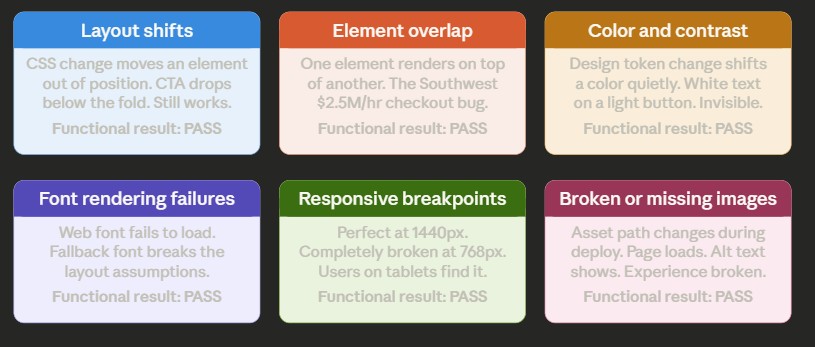
Not all visual bugs look the same. Knowing the categories helps you understand what you’re actually buying when you add visual testing to your pipeline.
Layout shifts happen when a CSS change moves an element out of position. A sidebar collapses. A CTA button drops below the fold. A card grid breaks into a single column on a tablet viewport. The element exists. The element works. It just isn’t where it’s supposed to be.
Element overlap is the Southwest bug. One element renders on top of another, blocking interaction or content. This is especially common on mobile, where narrow viewports expose spacing assumptions that work fine on desktop.
Color and contrast failures occur when a design system token change or dependency update quietly shifts a color value. A white button label on a light background. A link that’s now the same color as body text. These bugs often break accessibility compliance while breaking visual design.
Font rendering failures appear as incorrect typefaces, incorrect font weights, or text rendered at the wrong size when a web font fails to load. Users see a fallback font that breaks the layout assumptions the design was built around.
Responsive breakpoint failures are the hardest to catch manually. An application might look perfect on 1440px and completely broken on 768px. Without automated screenshot capture across multiple viewports, these bugs slip through testing and are discovered by users on tablets or smaller laptops.
Broken or missing images happen when an asset path changes, a CDN configuration drifts, or an image reference breaks during a deployment. The page loads. The alt text shows. The experience is broken.
All six of these bug types will pass a standard functional test suite. None of them will pass a visual test.
How Does Visual Testing Actually Work?
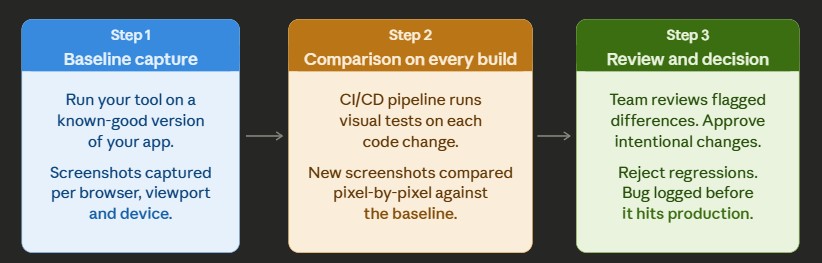
The process has three steps, and once you understand them, you see why it integrates naturally with CI/CD.
Step 1: Baseline capture
You run your visual testing tool on a known-good version of your application. It captures screenshots of every page, component, or view you care about, at every browser and viewport combination you specify. These become your baselines, the reference images that define what “correct” looks like.
Step 2: Comparison of every build
After every code change, your CI/CD pipeline runs visual tests. The tool captures new screenshots and compares them pixel-by-pixel or region-by-region against your baselines. Any difference gets flagged and sent to a review queue.
Step 3: Review and decision
Your team reviews flagged differences. Intentional changes, like a new button color after a brand refresh, get approved and the baseline updates. Unintentional changes, such as a login form shifting 12px after a dependency update, are logged as defects. The loop closes before the code reaches production.
Manual vs. automated visual testing
Manual visual testing means a human reviews the UI before every release. At low release frequency and small UI scope, it’s manageable. But at any meaningful speed, it breaks down fast. Testing three browsers, four device sizes, and fifty screens manually before every deploy is a full-time job that still misses things.
Automated visual testing plugs into your CI/CD pipeline. It runs in seconds. It covers every screen in parallel. It doesn’t get tired at the end of a sprint. Applitools Visual AI reduced false-positive alerts by 60% in pilot projects compared to a naive pixel-by-pixel comparison, according to Mordor Intelligence’s 2025 automation testing market research. That matters because false positives, flags for trivial rendering differences between browsers, are the main reason teams abandon visual testing suites after initially adopting them.
When Should Your Team Add Visual Testing?
Not every project needs it from day one. But you almost certainly need it if any of these apply.
You’re shipping multiple times per week. Manual visual review doesn’t scale past a few deployments. If your team is doing continuous deployment, you need automated visual coverage or you’re flying blind on the UI layer.
Your UI has multiple breakpoints, themes, or states. Dark mode, responsive design, white-label configurations, dynamic content, and multi-locale interfaces all multiply the visual surface area you’re responsible for. One CSS token change can ripple into 40 places across your component library. You can’t see them all.
You’ve had a visual bug reach production. If a user has ever sent you a screenshot of something broken that your tests didn’t catch, you have your business case. That bug escaped because there was no visual gate in place. Adding one is the fix.
You’re redesigning or rebranding. This is when visual regression testing pays for itself immediately. Every page, every component, every device. Automated comparison catches the drift before your design review meeting turns into a post-mortem.
You’re maintaining a design system. Every component in your library is a shared dependency. When a designer updates a token, that change propagates to every consumer. Visual testing is the only reliable way to see all of them at once.
For teams building mobile apps, tools like LambdaTest SmartUI and pCloudy provide real-device cloud testing to validate visual consistency across actual hardware. Emulators don’t always replicate real-device rendering behavior accurately, particularly for font rendering and GPU-accelerated animations. For a deeper look at how visual testing fits into a broader automation strategy, see our guide on building a QA automation framework.
Which Visual Testing Tools Should You Consider?
Here’s a practical comparison. This isn’t a ranking; it’s a reference for choosing based on your actual situation.
| Tool | Best for | Pricing model | CI/CD native | AI comparison |
|---|---|---|---|---|
| Applitools Eyes | Enterprise teams, complex UI, high volume | Paid (free trial) | Yes | Yes (Visual AI) |
| Percy (BrowserStack) | Teams already on BrowserStack, web apps | Free tier + paid | Yes | Partial |
| Chromatic | Storybook component libraries | Free tier + paid | Yes | No |
| LambdaTest SmartUI | Cross-browser + visual in one platform | Pay-per-use | Yes | Yes |
| Playwright built-in | Teams using Playwright who want basic coverage | Free (open source) | Yes | No |
A few notes on this table. Applitools is the most mature tool for AI-powered comparison, which matters if false positives are a pain point. Percy integrates tightly with BrowserStack’s cross-browser platform, which is useful if you’re already paying for that infrastructure. Chromatic is the right choice if your team builds in Storybook and wants visual coverage at the component level rather than the full-page level. Playwright’s built-in screenshot comparison is a solid starting point for teams that want zero new tools, but it lacks AI-powered filtering and requires more manual baseline management.
For a detailed breakdown of selecting the right automation tool stack for your context, check out our guide on test automation tool selection for QA teams.
What Are the Common Mistakes Teams Make With Visual Testing?
Treating it as a release gate, not a build gate. The biggest mistake is running visual tests only before a major release. By that point, you’ve already accumulated days of changes that are hard to isolate. Run visual tests on every build in CI. The earlier you catch drift, the cheaper it is to fix. This is the same principle behind shift-left testing generally, and it’s just as true for the visual layer.
Ignoring false positives until the suite is useless. If your tool generates too much noise, engineers stop reviewing the results. Unreviewed results are the same as no results. Invest time in configuring dynamic content exclusions for timestamps, ads, and animated elements. If you’re not using an AI-powered comparison tool, move to one. AI-powered visual testing has demonstrated meaningful reductions in false positives, according to Mordor Intelligence, and that number directly determines whether your team continues to trust the output.
Letting baselines go stale. Your product evolves. When a designer updates a component library, your baseline needs to update, too. Stale baselines mean every new build looks “broken” because it doesn’t match an outdated snapshot. Build baseline review into your design handoff process, not as an afterthought.
Not accounting for dynamic content. Timestamps, carousels, user-specific content, and A/B test variants will all trigger false positives if you don’t configure exclusions. This is one of the most common reasons new teams abandon their visual testing suite in the first sprint.
Skipping mobile viewports. The majority of users are on mobile. Testing only at desktop resolution is covering half your surface area. Any good visual testing strategy must include mobile breakpoints, ideally on real devices rather than emulators.
UI/UX bugs account for 45% of reported website issues, per QualityHive’s 2024 data, which is the same figure we referenced at the start. The reason it appears twice is intentional: the problem is big enough that it’s worth framing both the definition and the solution around the same statistic. If you walk away with one number, that’s the one.
For teams building test automation for accessibility compliance, visual testing is a useful complement. It can surface contrast failures and layout issues, but it doesn’t replace dedicated accessibility tooling for ARIA, keyboard navigation, and screen reader behavior.
FAQ’s on Visual Testing
Q. What is the difference between visual testing and functional testing?
Functional testing checks whether your application behaves correctly: does the button submit the form, does the API return the right data, and does the login redirect work? Visual testing checks whether your application looks correct: is the button visible, is the layout intact, and are fonts and colors rendering as designed? Functional tests validate behavior. Visual tests validate appearance. Both are necessary. A page can pass every functional test while still being completely visually broken, as the Southwest Airlines checkout example shows.
Q. What tools are used for visual testing?
The most widely adopted tools include Applitools Eyes, Percy (part of BrowserStack), Chromatic for Storybook component testing, LambdaTest SmartUI, and Playwright’s built-in screenshot comparison. Each integrates with CI/CD pipelines and supports screenshot comparison across browsers and devices. Tool selection depends on your stack, release volume, and whether you need an AI-powered comparison to manage false positives at scale.
Q. Is visual testing the same as UI testing?
Not exactly. UI testing is broader and includes both functional checks, such as whether the form submits correctly, and visual checks, such as whether the form looks right. Visual testing is specifically focused on the visual output: layout, spacing, colors, typography, and rendering across different environments. It’s a subset of UI testing that requires dedicated tooling and a separate test strategy.
Q. Can visual testing be automated?
Yes, and automation is what makes it practical at any scale beyond a small application. Automated visual testing captures screenshots on every build and compares them against stored baselines. It runs within CI/CD pipelines, automatically reports differences, and allows teams to approve or reject changes in a review workflow. Manual visual testing, where a human checks the UI before each release, doesn’t scale past a few pages or a few releases per week.
Q: What is visual regression testing?
Visual regression testing is a specific form of visual testing that catches unintended UI changes introduced by code updates. “Regression” means something that previously worked correctly now looks broken. After a developer pushes a change, visual regression tests compare before-and-after screenshots to detect layout drift, color shifts, or element repositioning that the update accidentally introduced. It’s the most common reason teams adopt visual testing: to protect against the UI breaking silently during
Q: How is a visual bug different from a functional bug?
A functional bug means the application does the wrong thing. A visual bug means the application looks wrong, even if it technically works. The Southwest Airlines example is definitive: the checkout button was present in the DOM, the form logic was intact, but the visual layer rendered Terms and Conditions text directly on top of the button. Users couldn’t interact with it. That’s a visual bug. It passed functional tests. It costs revenue.
Q: How do I set up a visual testing baseline?
Run your visual testing tool on a confirmed-good version of your application. The tool captures screenshots across every browser, viewport, and device combination you specify. These screenshots become your reference images. After each subsequent code change, the tool captures new screenshots and compares them to the baseline. When you make intentional visual changes, like a design refresh or brand update, you review and approve the differences and the new screenshots become the updated baseline.
Q: Does visual testing slow down my CI/CD pipeline?
It adds time, typically two to five minutes for a focused suite, depending on screen count and parallelism. Cloud-based tools run comparisons in parallel across browsers and viewports, keeping overhead manageable. The tradeoff is worth it: catching a visual bug in CI costs a code fix. Catching it after users report it costs a code fix plus support time, reputation damage, and potential revenue loss. The Southwest example had a $ 2.5M-per-hour exposure window.
Q: How should I handle false positives in visual testing?
Configure your tool to exclude dynamic content: timestamps, ads, animated elements, and user-specific data. Use AI-powered comparison where available, which understands the difference between meaningful visual changes and trivial rendering differences across browsers. Review flagged results as a team and update baselines regularly. AI-powered tools have achieved up to 60% reductions in false-positive alerts in documented pilot projects, which is the threshold for whether your team continues to trust the output. For a cross-browser coverage strategy, see our guide on building a cross-browser test strategy.
Q: Is one visual testing tool enough for all my testing needs?
It depends on your stack. If you build with Storybook, Chromatic covers component-level visual testing extremely well, but you’ll still want page-level coverage from a tool like Percy or Applitools. If you’re already on Playwright, the built-in screenshot comparison is a reasonable starting point, but at scale you’ll hit limits on managing false positives without an AI-powered layer. The most common mature setup is Playwright or Cypress for functional tests plus Applitools or Percy for visual coverage, all wired into the same CI pipeline.
Your functional tests tell you if the code works. Visual testing tells you if your users can actually use it. Those are different questions. Most teams answer only the first one and discover the gap when a customer sends a screenshot to their inbox.
The Southwest Airlines checkout bug, the United Airlines purchase button, the ThredUp shopping cart block: every one of those shipped through teams with real automation coverage. The gap wasn’t an effort. The gap was a missing layer.
If you want to hear how experienced QA practitioners are building visual testing into their automation programs, the Automation Hangout podcast covers this and a lot more. That’s a good next step.